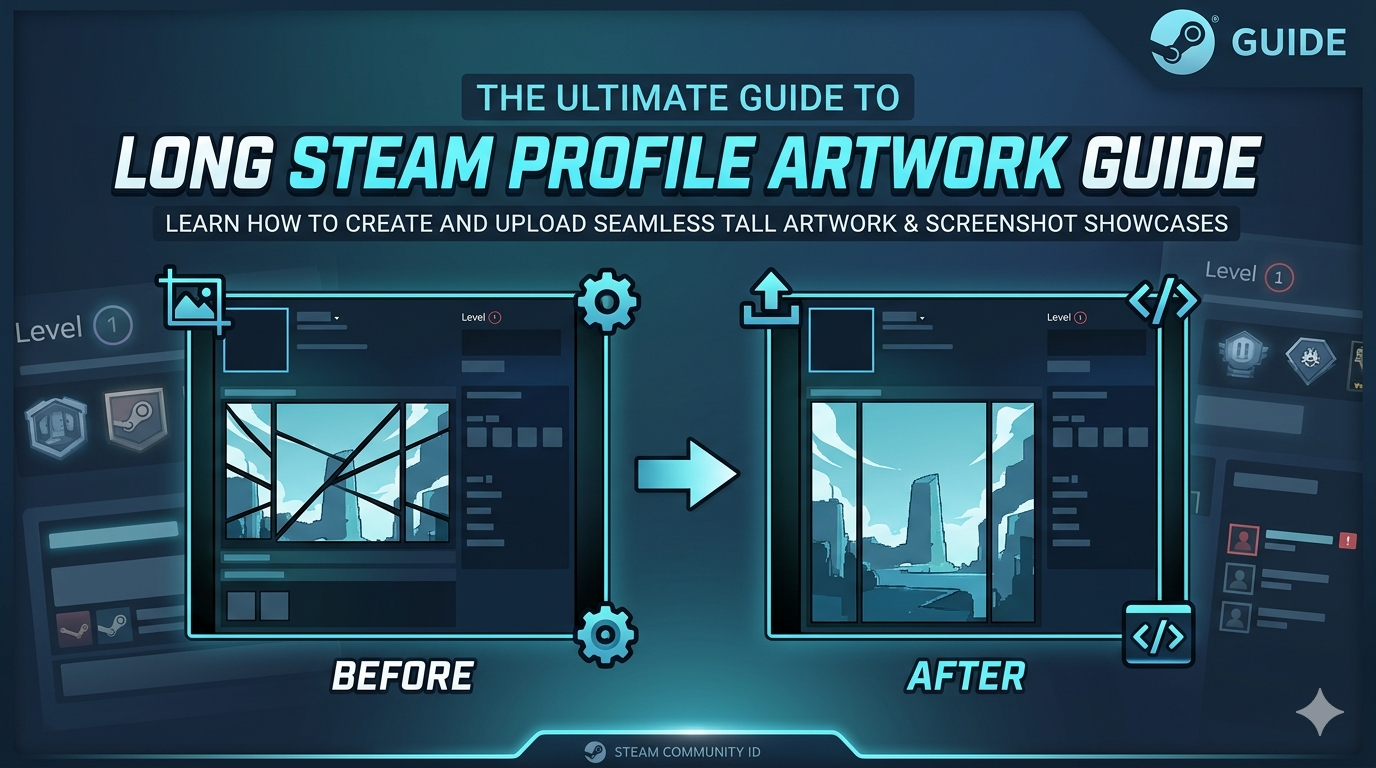
How to Upload Long Images to Steam Showcases
This guide explains how to upload tall images or GIFs for Steam Artwork, Featured Artwork, or Screenshot showcases.
Requirements
- You need to be at least Steam Level 10 to display an Artwork or Screenshot showcase on your profile.
- For a regular Artwork Showcase, use a center image that is 506 px wide and a side image that is 100 px wide; keep both at the same height if you want them aligned.
- For a Featured Artwork Showcase, use one image that is 630 px wide with any height.
- Avoid using source images that are too small, because long artwork can crop or scale badly if the original resolution is low.
Open the Upload Page
- Open this page in Google Chrome or Mozilla Firefox: https://steamcommunity.com/sharedfiles/edititem/767/3/.
- Click Choose File and select your image or GIF.
- Open the browser console, either from the right-click menu with Inspect / Inspect Element or with a shortcut such as
Ctrl+Shift+Jin Chrome orCtrl+Shift+Kin Firefox. - In Firefox, type
allow pastingmanually in the console once before pasting any command.
Run the Command
Paste only one of the following commands into the console and press Enter.
Artwork or Featured Artwork
$J('#image_width').val(1000).attr('id',''),$J('#image_height').val(1).attr('id','');
Screenshot
$J('#image_width').val(1000).attr('id',''),$J('#image_height').val(1).attr('id',''),$J('[name=file_type]').val(5);
- Ignore the preview if it looks wrong, blank, or shows the wrong file; the guide notes that the selected image or GIF can still upload correctly.
Save and Add It
- Enter a title for the upload.
- Check the box confirming that you created the artwork.
- Click Save and Continue.
- In the showcase selector, the item may appear as a very thin black line at first; this is described as normal, and it should display properly once loaded on the profile.